
If you have never built a website, the vocabulary alone can stop you. Domain, hosting, DNS, themes, plugins: it sounds like a technical field you would need a course to enter. It is easier than it sounds, because a website is made of just three parts, and each one does a single job.
This guide to how to build your first website for beginners covers those three parts before you spend anything: what each one does, what it does not do, and how they fit together. Once you can explain them in your own words, the setup steps stop feeling like a foreign language.
The house analogy: why every website is really three separate things
Picture a house. To have one, you need an address so people can find it, a plot of land for it to stand on, and a building where you live and arrange the rooms.
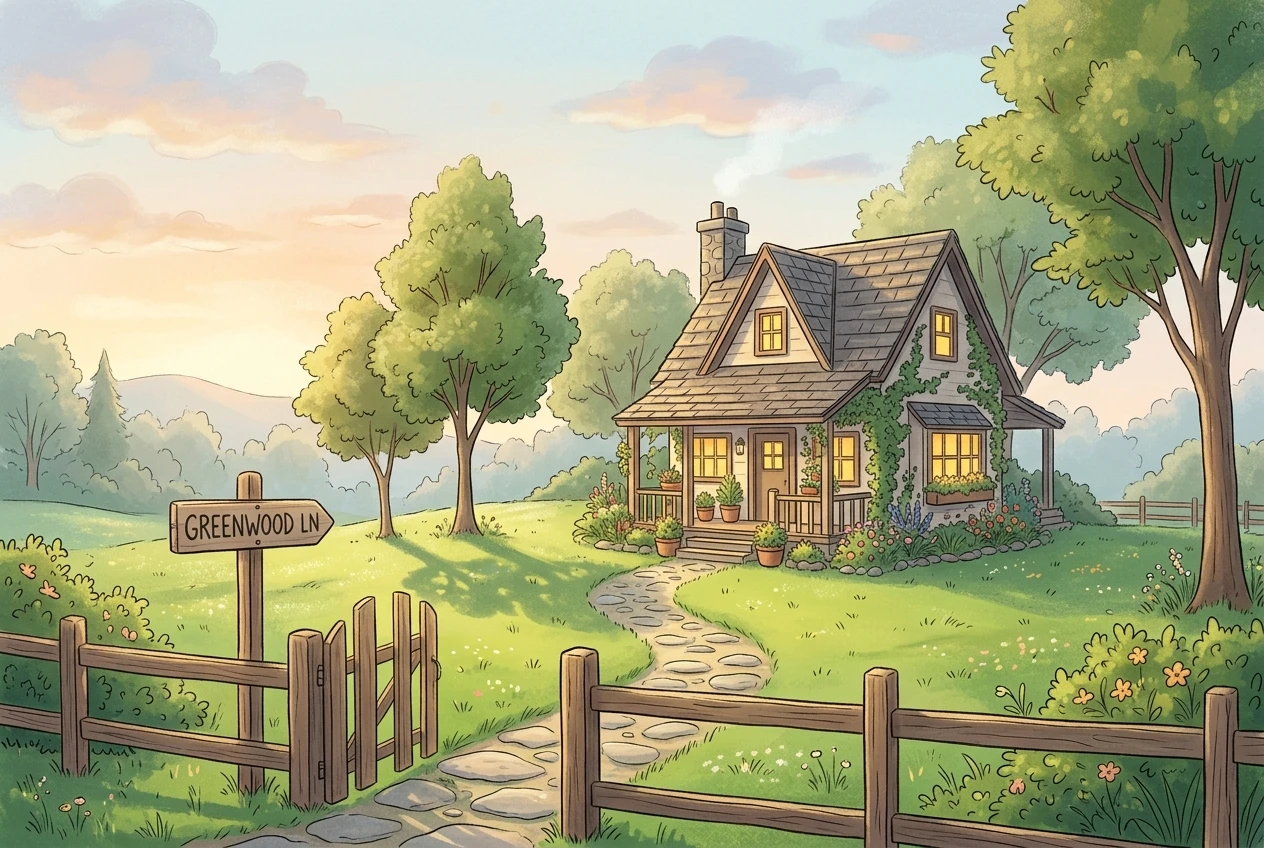
A website works the same way:
- The domain is the address. It is the name people type into a browser, like yourwebsite.com.
- The hosting is the land. It is the computer space where your website’s files are stored and kept online around the clock.
- WordPress is the building. It is the software you work in to create pages, write articles and choose how everything looks.
Beginners often treat these as one product, because some companies sell all three together and the sign-up pages blur them. They are still separate things, bought or set up separately, and you can change one without rebuilding the others. You can move to a new host and keep your domain, or redesign your building and keep the same address.
Understanding that separation is most of the work. When something goes wrong later, you will know which of the three to look at.
Your domain: the address people type, and how to choose one you won’t regret
A domain name has two parts: the name itself and the ending, called the extension. In wealthyexample.com, “wealthyexample” is the name and “.com” is the extension. Together they make the address that leads visitors to your site.
A domain holds none of your content. It does not store your articles or images and it does not display anything by itself. It only points visitors to wherever your site is hosted. If you register a domain and do nothing else, anyone who types it in will find an empty or error page.
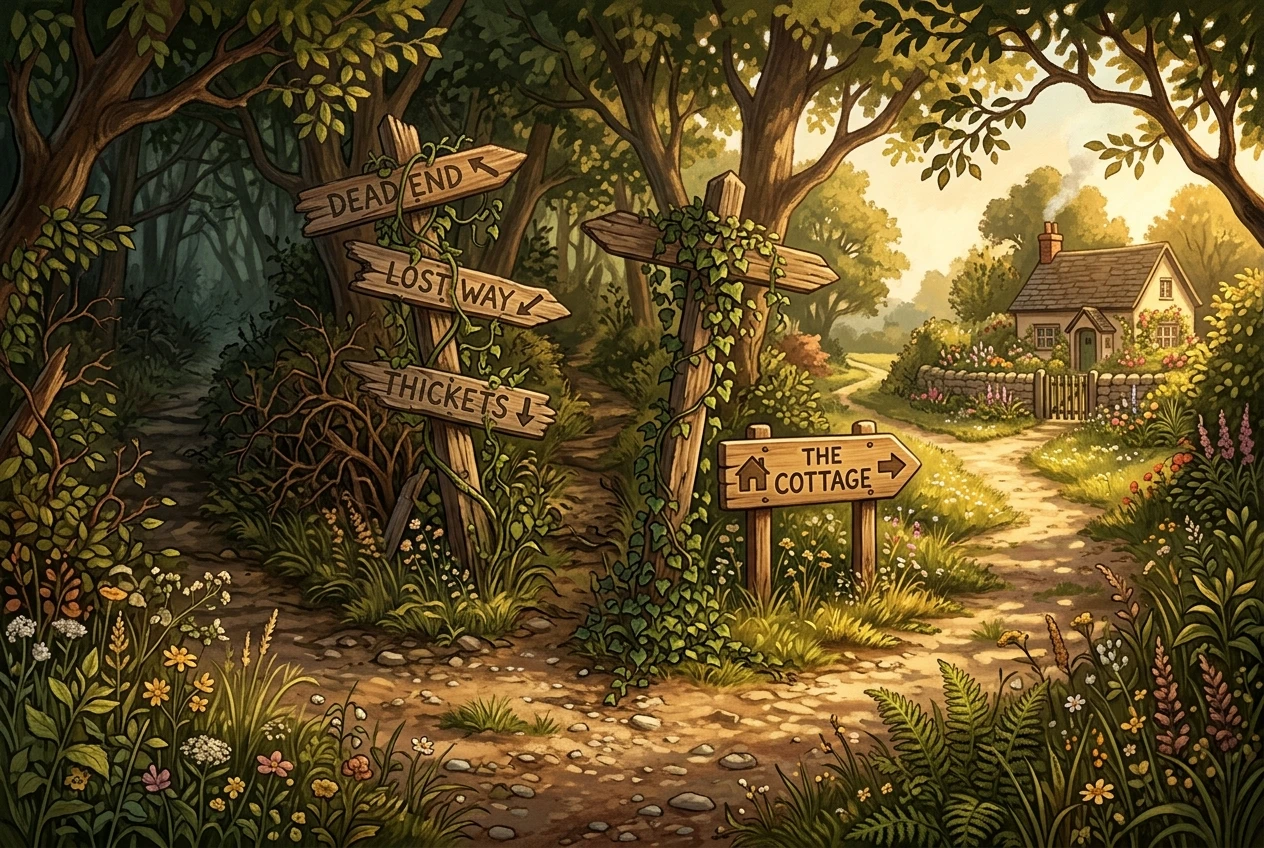
You do not own a domain forever the way you own a physical object. You register it for a period, usually a year at a time, and you renew it to keep it. If the renewal lapses, the name can eventually become available to someone else. Check the renewal terms before you buy, because the first-year price and the renewal price can differ.
How to choose a name you will still like in two years
Changing your domain later is possible but disruptive, since every link and every mention of your old address has to be updated. A little thought now saves that trouble. These guidelines hold up well:
- Keep it short. Shorter names are easier to remember and to type correctly.
- Make it easy to say aloud. If you have to spell it out when you tell a friend, it is too awkward.
- Skip hyphens and numbers. People mistype them, or forget whether a number was written as a digit or a word.
- Leave room to grow. A name tied to one narrow product can feel limiting if your topic widens. A name tied to the general subject or to your own brand gives you more freedom.
- Prefer .com when you can get it. It is the ending most people assume, so they type it by default. Other extensions work, but a lot of visitors will guess .com first.
- Check for conflicts. Search the name to see whether a business or brand already uses something similar, and avoid using someone else’s trademarked name.
Write down five or six candidates, then say each one out loud and type each into a domain search to see what is free. The best name is usually the one that is both available and not embarrassing to say to a stranger.
Your hosting: the land your site lives on, and what it actually does all day
Every file on your website, including text, images and settings, has to be stored on a computer that is always switched on and connected to the internet. Your own laptop is not suited to that job, because it sleeps, travels and loses its connection. A hosting company runs powerful computers called servers that are built to stay online continuously, and it rents you space on them.

Here is what hosting does for your site every day:
- Stores your files and your database. Your articles, images and settings sit on the server.
- Responds to visitors. When someone asks for a page, the server finds the right information and sends it to their browser.
- Runs the software. WordPress is a program, and it needs a server to run on.
- Keeps the site secure and backed up. How much of this the host handles for you depends on the company and the plan, so ask about it before you buy.
Hosting does not give your site a name, and it does not design anything. Plans come with their own limits, such as how much storage you get and how much traffic the plan can handle. The quality of the host affects how quickly your pages load and how often the site is unavailable, which is why it is worth choosing with some care rather than just picking the cheapest offer.
Many hosting companies also provide a security certificate, which is what puts the small padlock and “https” in the address bar. Check that your plan includes it, since visitors tend to trust sites that show it.
WordPress: the building you’ll actually work in (and why it’s the usual beginner choice)
WordPress is free, open-source software that you install on your hosting. It gives you a dashboard where you can write articles, create pages, upload images, build menus and change the look of your site, all without writing code. When you picture “building a website”, this dashboard is where you will spend most of your time.
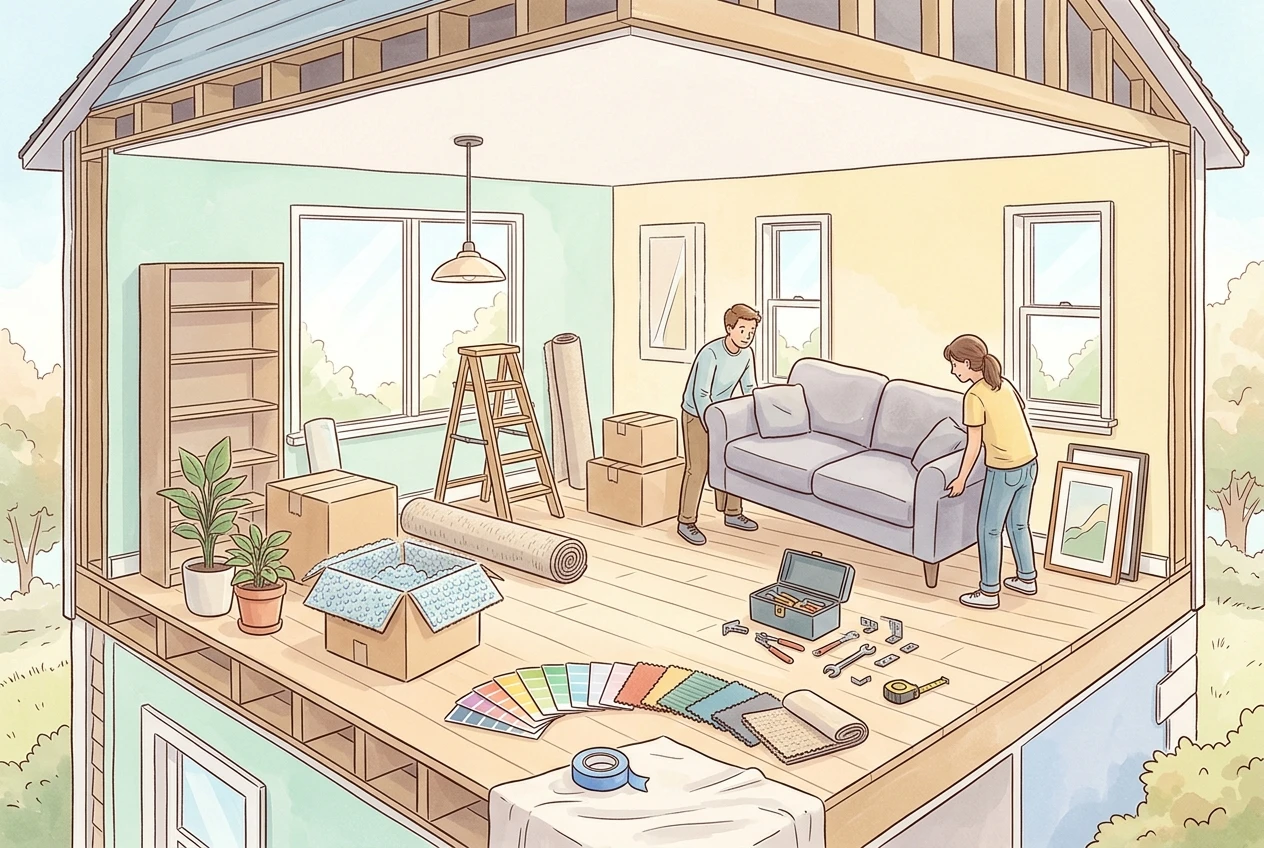
Two pieces inside WordPress are worth knowing by name:
- Themes control how your site looks: layout, fonts, colors and spacing. You can change a theme without losing your articles.
- Plugins add features, such as contact forms or extra security. You can add them as you need them rather than all at once.
One point trips up many beginners. WordPress.org is the free software you install on hosting you control. WordPress.com is a separate company that offers hosted sites with its own plans and its own restrictions. When people recommend WordPress for building an online business, they usually mean the software, installed on your own hosting, because it gives you the most control over your site and what you can do with it.
Beginners tend to choose WordPress for practical reasons. There are many themes and plugins available, a large amount of free documentation and tutorials, and plenty of people who have already solved whatever problem you run into. You also own the site, which matters if you plan to build something that lasts.
How the three connect when someone visits your site
Here is what happens in the second or two after someone types your address into their browser:

- The browser asks where your domain lives. Domain names are really labels for numeric addresses. A system called DNS works like a directory, looking up which server your domain points to.
- The request reaches your hosting. The browser contacts that server and asks for the page.
- WordPress builds the page. It pulls your text and images from storage, applies your theme and assembles the page.
- The server sends the page back. The visitor sees it on their screen.
The link between your domain and your hosting is a setting. You tell your domain where to point, usually by entering your host’s “name servers” in your domain account. After you change it, the update can take a few hours, and sometimes longer, to spread across the internet. A site that does not appear right after you connect a domain is normal, and waiting is often the whole fix.
Understanding this chain tells you where to look when something breaks. If the address leads nowhere, check the domain’s settings. If the site loads slowly or goes offline, look at the hosting. If a page looks wrong, the problem is in WordPress or its theme.
What you can ignore for now so you don’t get stuck before you start
A lot of advice online treats every optional extra as urgent. For a first site, most of it can wait:
- A custom email address on your domain. It looks professional, but you do not need it to publish.
- Paid themes. A free theme is enough to get started, and you can change it later without losing content.
- A long list of plugins. Every plugin adds something to maintain. Add one when you have a clear reason.
- Speed tuning and caching settings. These matter once you have real visitors, not on day one.
- A logo. A simple text title works while you decide what your site is about.
- A perfect design. Pages you have published teach you more than layouts you keep adjusting.
If you are still deciding what your site should be about, the broader plan lives in how to start an online business from scratch. This article stays with the three technical parts so they feel less intimidating, and the wider roadmap will make more sense once they do.
Your first-website checklist, in the order that makes sense
Work through these in order. Each step depends on the one before it.
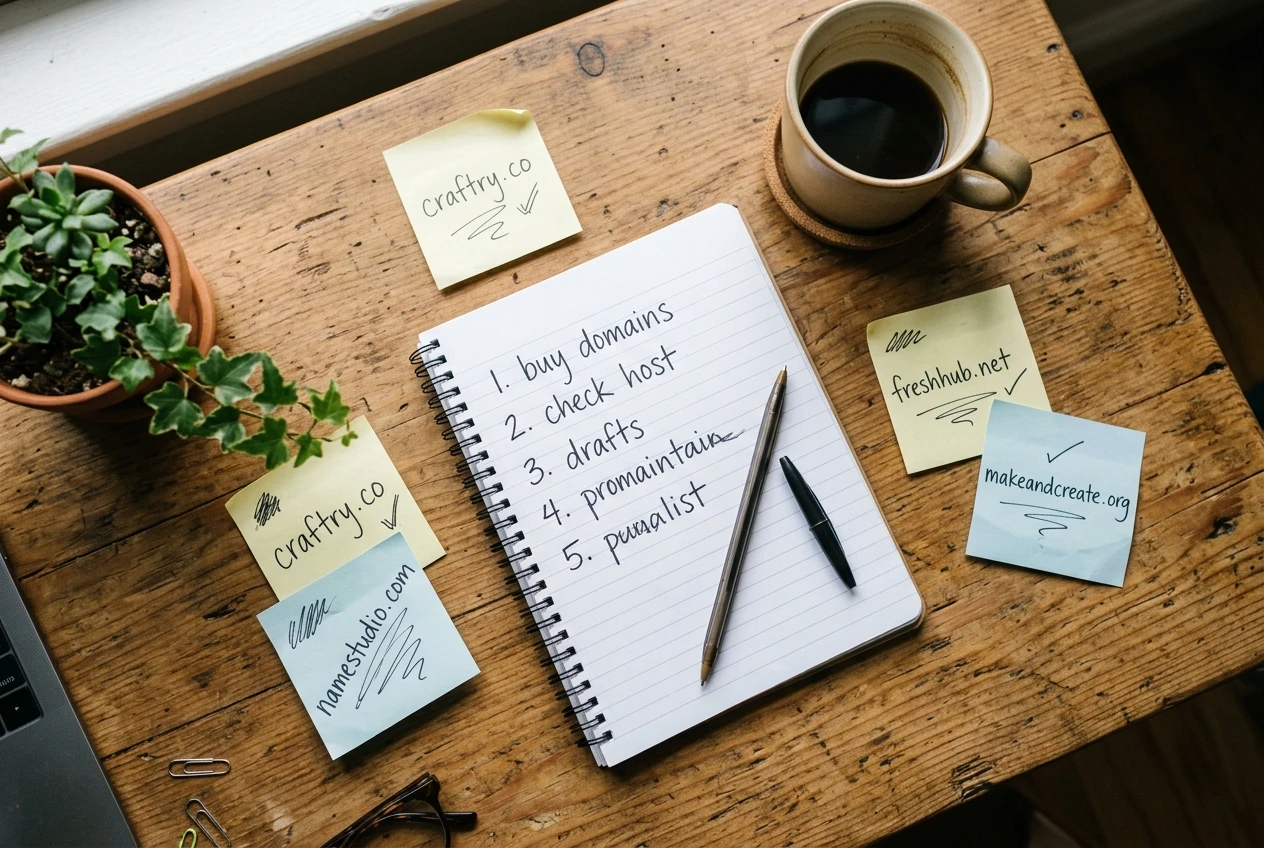
- Describe your site in one sentence. Say what it is about and who it is for. Your domain name will come from this.
- Brainstorm and check domain names. Make a short list, test each one for availability and conflicts, and pick the one you can say easily.
- Choose your hosting. Compare what each plan includes: storage, security certificate, backups and support.
- Register your domain and connect it to your hosting. Enter the name server details, then allow time for the change to take effect.
- Install WordPress. Many hosts offer a guided installer that does this in a few clicks.
- Pick a free theme. Choose a clean, simple one and leave advanced customization for later.
- Create your essential pages. An About page and a Contact page cover what most visitors look for first.
- Publish your first article. A live post teaches you the dashboard faster than any amount of reading about it.
Take it one step at a time. Each of the three parts becomes straightforward once you have used it once.
Ready to put the three parts together?
Don’t want to piece these three parts together yourself? Wealthy Affiliate lets you set up your first WordPress site inside the platform in minutes, with training and a community beside you. Start with the free Starter membership and see how it feels.
If you want to know what to do in your first few days once the site exists, your first week online lays out what to do and what to skip.